DVD to USB Converter: 3 Easy Ways for TV or Car Playback in 2026
Your DVD collection is gathering dust, but your car’s USB port and your 4K TV’s media player are sitting idle. That gap is worth closing. Converting DVDs to USB gives you the same movies in a format that works with almost every screen you own, with no disc swapping and no risk of scratches destroying a disc you bought 20 years ago. Here are three methods that work well in 2026, from the simplest to the most hands-on.
Why USB Playback Makes Sense Now
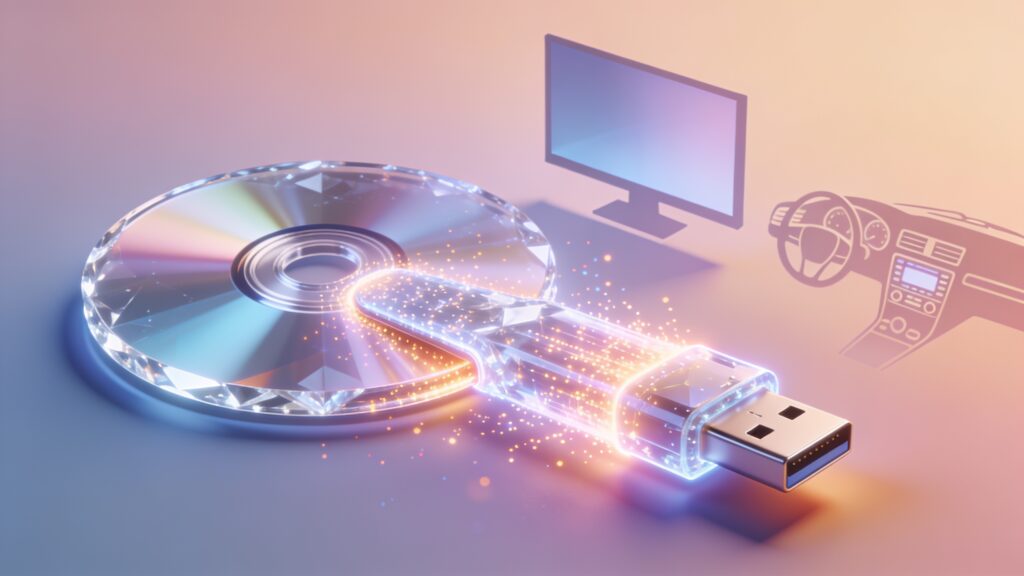
Modern smart TVs and car head units read USB drives directly. You plug in a drive, browse a file list, and press play. The catch is that the files have to be in a compatible format, typically MP4 with H.264 video and AAC audio. That means you can’t just copy the raw VIDEO_TS folder from a disc and expect it to work. You need to rip and convert the DVD into a clean video file first.
The three approaches below cover different situations. One is ideal if you want to preserve quality for a big TV. Another is the fastest route for car playback. The third works if you have no computer at all.
Method 1: HandBrake (Free, Best Quality)
HandBrake is the standard choice for DVD ripping on Windows, Mac, and Linux. It handles copy protection on unencrypted discs out of the box. For commercial DVDs with CSS encryption, you install libdvdcss alongside it, which is a one-time step that takes about two minutes.
Steps
- Insert the DVD and open HandBrake.
- Select the disc as your source. HandBrake scans the titles automatically.
- Choose the longest title, which is almost always the main feature.
- Pick the “Fast 1080p30” preset as your starting point, then drop the resolution to 720p if your car screen is small.
- Set the container to MP4 and the encoder to H.264.
- Set your destination to a folder on your desktop, then click Start Encode.
A 90-minute film encodes in roughly 20 to 40 minutes on a mid-range laptop from 2023 or newer. The output file runs between 1.5 GB and 3 GB, which fits comfortably on a 32 GB USB drive alongside 15 to 20 other movies.
HandBrake gives you real control. You can adjust bitrate for smaller files, burn in subtitles, or select specific audio tracks. For TV playback especially, the quality difference between a careful HandBrake encode and a quick-and-dirty conversion is visible on a 55-inch screen.
Method 2: VLC Media Player (Fast, One-Tool Solution)
VLC is already on most computers as a video player, but its Convert/Save function doubles as a solid DVD ripper. The output quality sits below HandBrake’s ceiling, but the workflow is faster and the tool is already familiar.
Steps
- Open VLC, go to Media, then Convert/Save.
- Click the Disc tab, select DVD, and choose your drive.
- Click Convert/Save at the bottom.
- In the Profile dropdown, choose “Video for MPEG4 + MP3 (MP4)” or a similar H.264 profile.
- Set a destination file name on your USB drive directly, so the output lands straight where you need it.
- Click Start.
VLC encodes in real time by default, so a 90-minute film takes about 90 minutes. You can adjust settings to speed that up, but the default is predictable and stable. This method is ideal if you want to skip the HandBrake learning curve and you already have VLC installed.
One honest limitation: VLC’s conversion interface is less polished than HandBrake’s. If the disc has multiple audio tracks or subtitles you want to keep, HandBrake handles that more cleanly.
Method 3: A Hardware DVD to USB Converter
If your computer has no disc drive and you’d rather skip software entirely, a standalone hardware converter is the answer. These are small boxes that accept a DVD player on one end via composite or HDMI and record the output to a USB drive or SD card.
| Feature | Hardware Converter | HandBrake | VLC |
|---|---|---|---|
| Requires a computer | No | Yes | Yes |
| Encoding speed | Real time | Faster than real time | Real time |
| Output quality | Moderate (720p cap common) | High (up to source quality) | Good |
| Cost | $40 to $120 | Free | Free |
| Handles copy protection | Yes (analog capture) | Needs libdvdcss | Needs libdvdcss |
Hardware converters work by capturing the analog signal from your DVD player’s output. Because they operate at the analog level, they bypass digital copy protection entirely. The trade-off is quality. Most units cap at 720p and use moderate bitrates, so the result looks fine on a car screen but shows softness on a large TV.
Devices like the Elgato HD60 X or cheaper no-brand capture cards paired with OBS software follow the same principle if you want more control. That setup is slightly more involved, but it gives you better quality than a basic all-in-one box.
Choosing the Right USB Drive for Playback
The drive itself matters. A cheap drive with slow read speeds can cause stuttering on a TV’s media player.
- Go for USB 3.0 drives rated at 90 MB/s read speed or faster.
- Format the drive as exFAT so it works with both TVs and car systems.
- Keep individual files below 4 GB if you ever need to use FAT32, though exFAT removes that limit entirely.
- Stick to clean file names with no special characters, since some car head units struggle with brackets or symbols.
Key Takeaways
HandBrake is the right tool if quality matters and you have a computer with a disc drive. VLC is the faster path if you want simplicity and already have it installed. A hardware converter is the practical choice if your setup has no optical drive or if you prefer a physical workflow.
Pick your method, encode a few discs first before doing a full batch, and test playback on your actual TV or car before you commit to 50 encodes. The format difference between a disc that plays and one that freezes at 40 minutes is usually a codec setting, and catching that early saves a lot of re-encoding time.