Best Free Software to Copy Old DVDs and Rip to USB
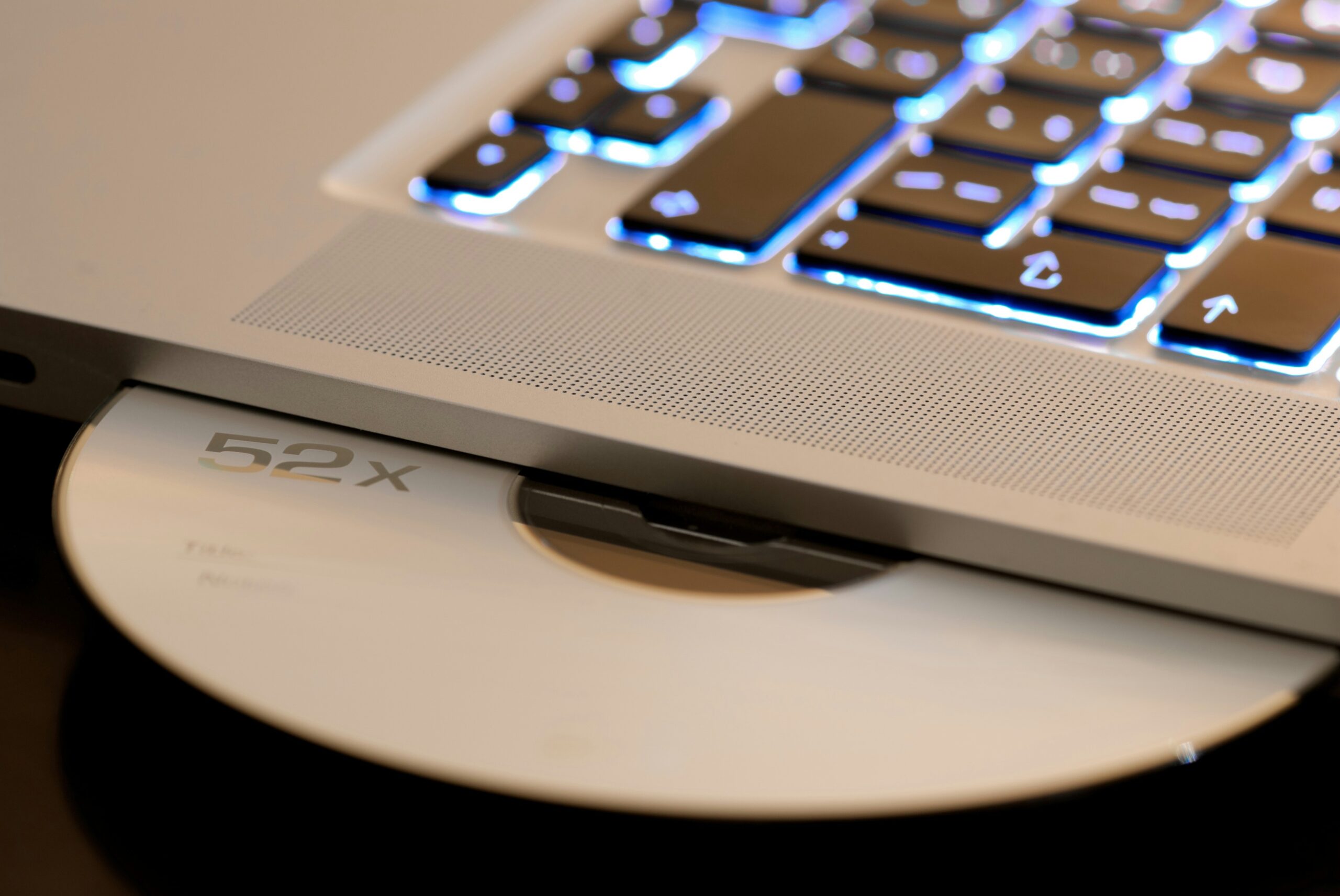
If you have a shelf of DVDs collecting dust, you already know the problem. Discs scratch, players break, and finding a working DVD drive on a modern laptop is increasingly rare. Ripping those movies to a USB drive gives you one clean, portable backup you can plug into any TV, media player, or computer. The good news: free software exists that does this well, and you do not need to pay for anything to get a solid result.
This guide covers the best free tools for the job, what each one does best, and how to match the right software to your situation.
Why Ripping to USB Makes Sense
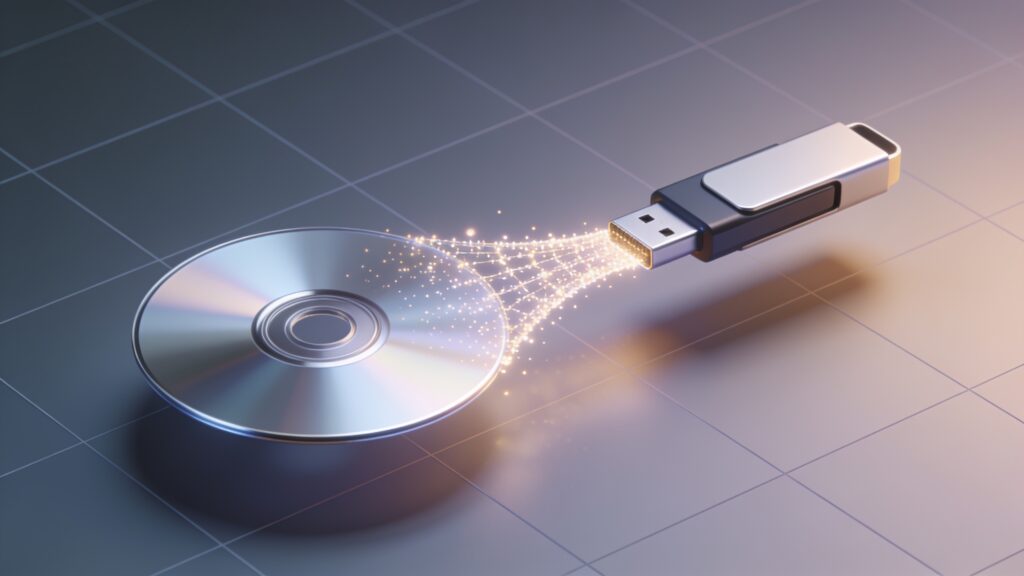
A USB drive holds a lot. A standard 128GB drive fits roughly 20 to 30 DVD-quality rips at full quality, or far more if you compress them. USB drives are solid-state, so there is no disc rot or scratching. You can plug one into a smart TV, a fire stick via a USB-OTG adapter, or a media center PC running Plex or Kodi.
The main decision before you pick software is what output format you want. Full DVD backups preserve menus and extras. A single video file (MKV or MP4) is simpler for playback anywhere. Some tools do both, some do one.
The Best Free DVD Ripping Tools
HandBrake
HandBrake is my top recommendation for most people. It converts DVD video directly to MP4 or MKV, it runs on Windows, Mac, and Linux, and the output quality is excellent. The preset system means you can pick “Fast 1080p30” or “HQ 480p30 DVD” and get a sensible result without touching advanced settings.
The interface looks busy at first, but the workflow is straightforward. You open the disc, pick a title (usually the longest one for the main movie), select a preset, set your output folder, and hit Start. A two-hour DVD typically encodes in 20 to 45 minutes depending on your CPU.
HandBrake does have one limitation. It reads unencrypted DVDs by default. For copy-protected discs, you need to install libdvdcss alongside it. This is a separate free library, and the installation takes about two minutes on any platform.
MakeMKV
MakeMKV is the tool I reach for when I want a faithful, lossless backup. It takes the full DVD and wraps it into an MKV container with no re-encoding. The quality is identical to the source disc because nothing is compressed further.
The trade-off is file size. A full movie in MKV from MakeMKV can run 4GB to 8GB, compared to 1GB to 2GB from HandBrake. For a 128GB USB drive, that matters. I use MakeMKV when I want a true archive copy, then sometimes run the MKV through HandBrake afterward to make a smaller version for daily use.
MakeMKV is technically in beta and requires a free registration code. The code is posted publicly on the MakeMKV forum and updates periodically. A minor inconvenience, but the software itself is free and works well.
DVD Shrink
DVD Shrink is an older tool, but it still works on Windows and handles something the others do not focus on: fitting a dual-layer DVD onto a single-layer backup. It compresses the video to hit a target file size, which is useful if you want a disc image or ISO file rather than a video file.
If your goal is a direct DVD-to-USB copy that you can mount as an ISO, DVD Shrink produces clean results. It reads most copy-protected discs on its own. The interface is dated but logical, and the output is reliable.
VLC Media Player
VLC is primarily a player, but it has a built-in conversion and disc ripping function buried under the Media menu. The “Convert/Save” option lets you rip a DVD directly to a file. It handles many protected discs if libdvdcss is already installed.
I would say VLC is a backup option rather than a primary ripping tool. The settings are less intuitive than HandBrake and the process is slower. That said, if you already have VLC installed, it works in a pinch and requires zero additional downloads.
Quick Comparison
| Tool | Output Format | Handles Encryption | File Size | Best For |
|---|---|---|---|---|
| HandBrake | MP4, MKV | With libdvdcss | Small (1-2GB) | Everyday ripping, compression |
| MakeMKV | MKV | Yes, built-in | Large (4-8GB) | Lossless archive copies |
| DVD Shrink | ISO, VOB | Yes, built-in | Medium | ISO/disc image backups |
| VLC | MP4, MKV, others | With libdvdcss | Varies | Quick rips, already installed |
How to Get Your Rip Onto USB
Once your file is ready, copying to USB is simple. Plug in the drive, drag the file over, done. A few things worth knowing:
- FAT32 formatted drives have a 4GB file limit. If your rip exceeds that, format the drive as exFAT or NTFS first.
- exFAT works on both Windows and Mac with no driver needed.
- Most smart TVs read exFAT drives without issue.
- Name your files clearly before copying. Plex and Kodi both scrape metadata based on filenames like “MovieName (2001).mkv”.
My Recommended Workflow
For most people with a stack of old DVDs, I suggest this approach. Install MakeMKV to rip each disc to a full MKV. Check the result plays correctly. Then, for discs you want in a smaller format for TV playback, run those MKV files through HandBrake using the “HQ 480p30 DVD” preset. Keep the MakeMKV originals on an external hard drive as your archive, and put the HandBrake files on the USB drive for everyday use.
This two-step process takes more time upfront but gives you the best of both worlds: a lossless backup and a portable, space-efficient copy.
Key Takeaways
HandBrake is the right starting point for most people. MakeMKV is the better choice if file size is no concern and you want a perfect copy. DVD Shrink fills a specific gap for ISO outputs. Install libdvdcss if your discs are copy-protected. Format your USB drive as exFAT before you start copying, and your files will play on anything.
Start with one disc as a test before committing to a full ripping session. Getting the settings right on disc one saves a lot of re-work later.